Vulnerability Scanning with Inspector
Security is an extremely critical aspect for containerized applications. Even if you have built an image from your Dockerfile, it can still contain libraries or software packages with known security vulnerabilities. Amazon ECR integrates tightly with Amazon Inspector to provide automatic vulnerability scanning for your Docker images. This helps you detect security risks early and minimize the attack surface.
Objectives of this section
- Understand the importance of vulnerability scanning for Docker images.
- Activate the Amazon Inspector service for your AWS account.
- Configure the enhanced scanning feature, powered by Amazon Inspector, in ECR.
- View and analyze vulnerability scan results to better understand potential risks.
Overview of Vulnerability Scanning in ECR
Amazon ECR offers two types of vulnerability scanning:
- Basic scanning: Uses the Clair Common Vulnerabilities and Exposures (CVE) database to scan operating system packages. This is the default and less comprehensive scanning option.
- Enhanced scanning: Powered by Amazon Inspector, this is the recommended scanning option. Inspector provides more comprehensive scanning capabilities, including operating system and application package-level vulnerabilities, as well as information on exploitability and remediation steps. Enhanced scanning can be configured to continuously scan images as they are pushed and periodically re-scan when new vulnerability information becomes available.
In this workshop, we will enable Enhanced scanning with Amazon Inspector to get the most comprehensive view of our image security.
Enabling Vulnerability Scanning with Amazon Inspector
For ECR to use Amazon Inspector for enhanced scanning, you need to ensure the Amazon Inspector service is activated in your AWS account.
In the search bar, type “Inspector” and select Amazon Inspector.

If this is your first time accessing Inspector or the service is not yet activated, you will see a welcome page. Click the Activate Inspector (or similar) button to enable the service.
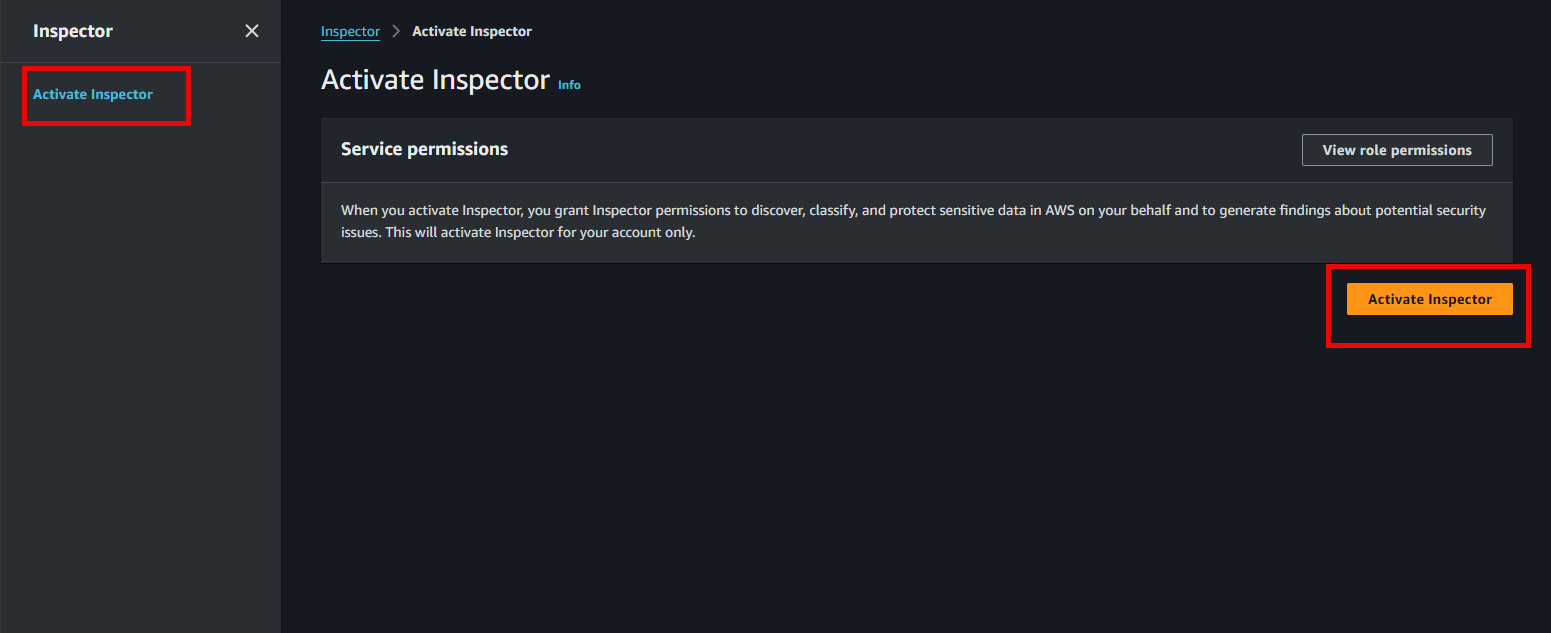
Amazon Inspector is a paid service. Activating it will incur small costs based on the number of images scanned and data analyzed. Ensure you deactivate it after completing the workshop if you no longer need it.
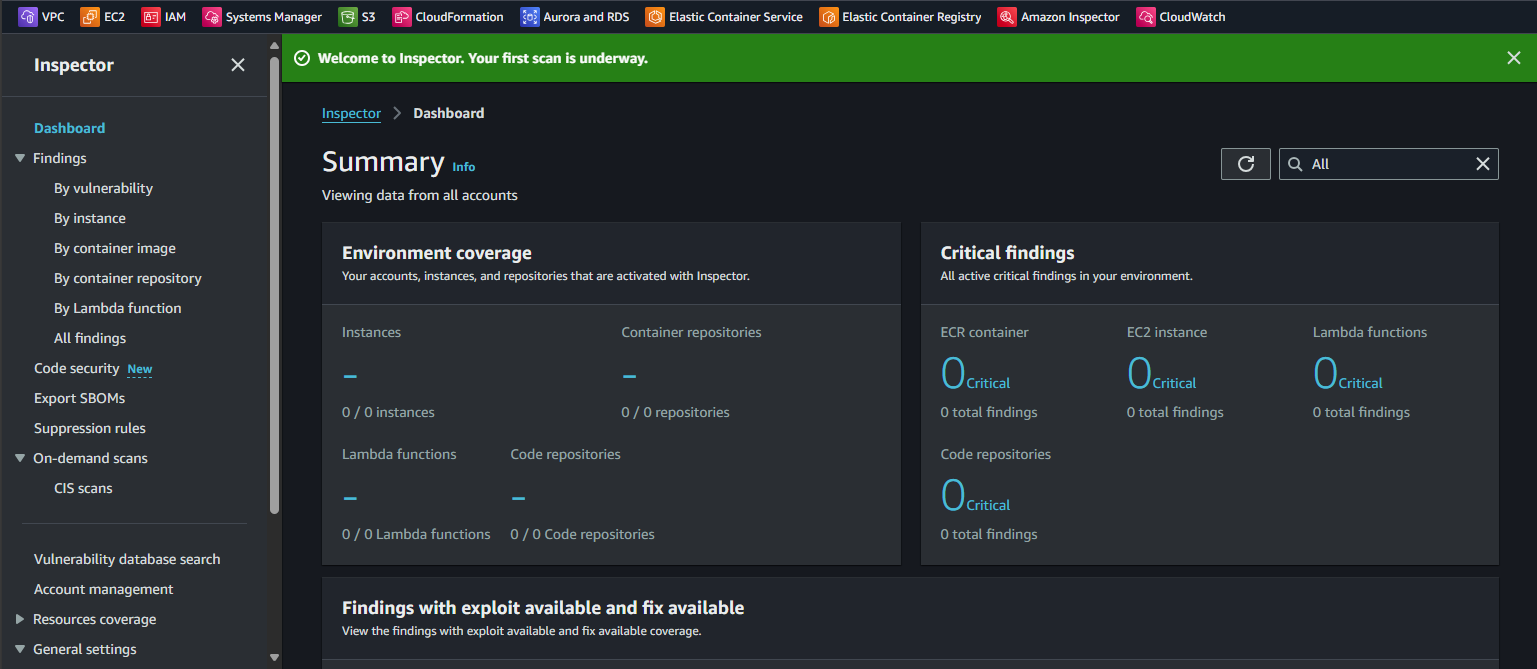
Access the ECR service:
- After activating Inspector, return to the search bar, type “ECR”, and select Elastic Container Registry.
Configure Enhanced Scanning for the account in ECR:
- In the ECR dashboard, click Scan settings in the left navigation pane under Features & Settings, then select Scanning.
- Here, you will see the option to configure the default scan type for new repositories. Select Enhanced scanning.
- Click Save to save this configuration.
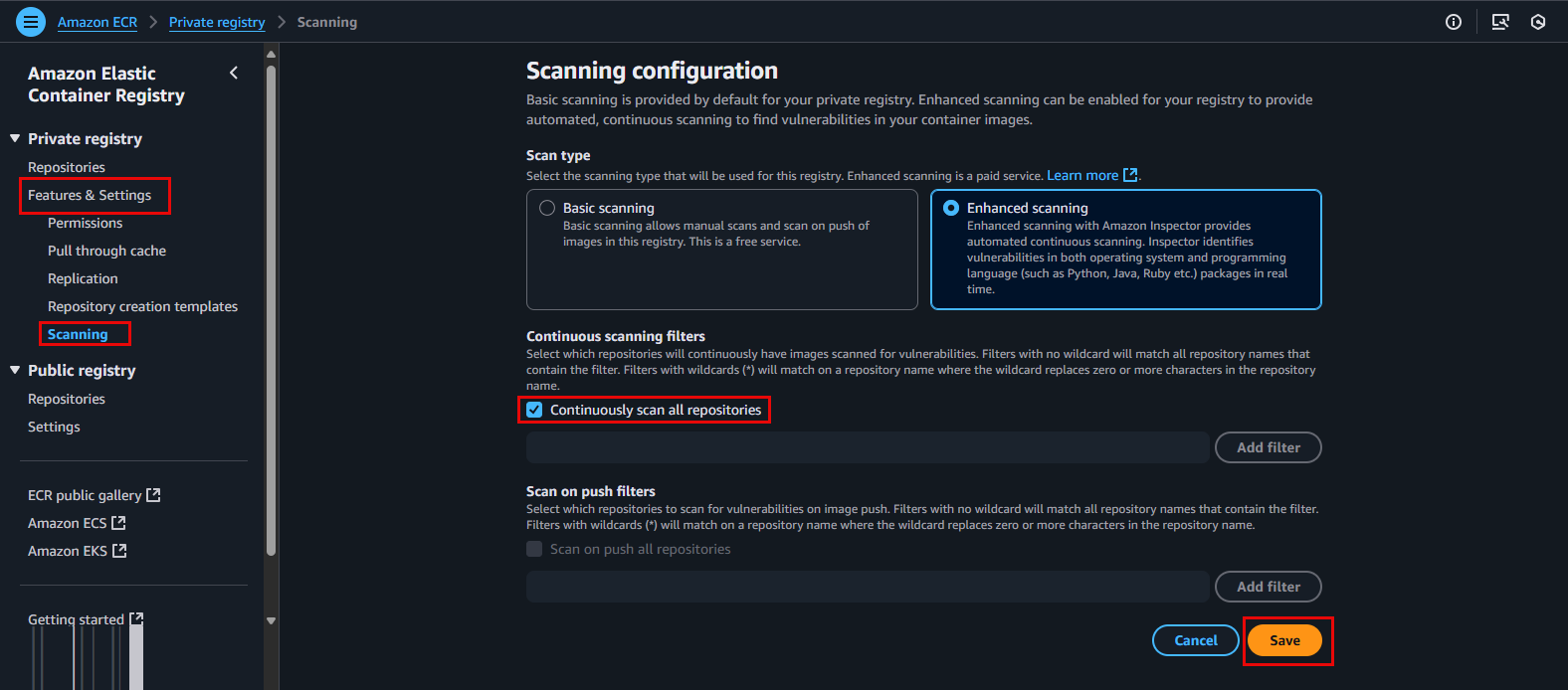
Confirm image scan configuration for the Repository:
- Go back to Repositories.
- Click on your
fcj-workshop-apprepository. - Select your image and click Details.

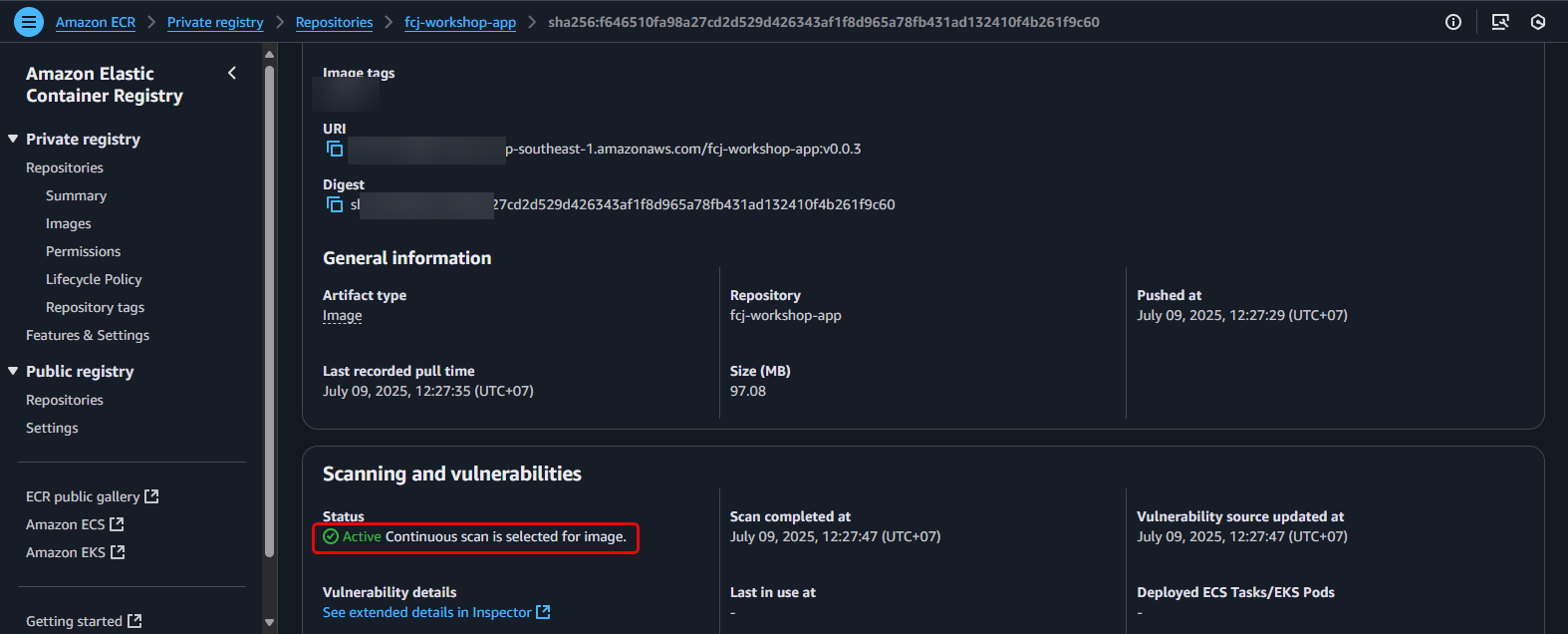
With Enhanced scanning enabled, newly pushed images to the repository will be automatically scanned. Existing images might require some time for the initial scan, or you may need to push a new version to trigger a scan.
Viewing and Analyzing Scan Results
Once the scanning process is complete (usually takes a few minutes), you can view the results directly in the ECR console.
In the ECR dashboard, click Repositories.

Click on your
fcj-workshop-apprepository.Click on the tag of the image you want to inspect in detail, select your image, and then click Details.
On the image details page, click the See extended details in Inspector tab.
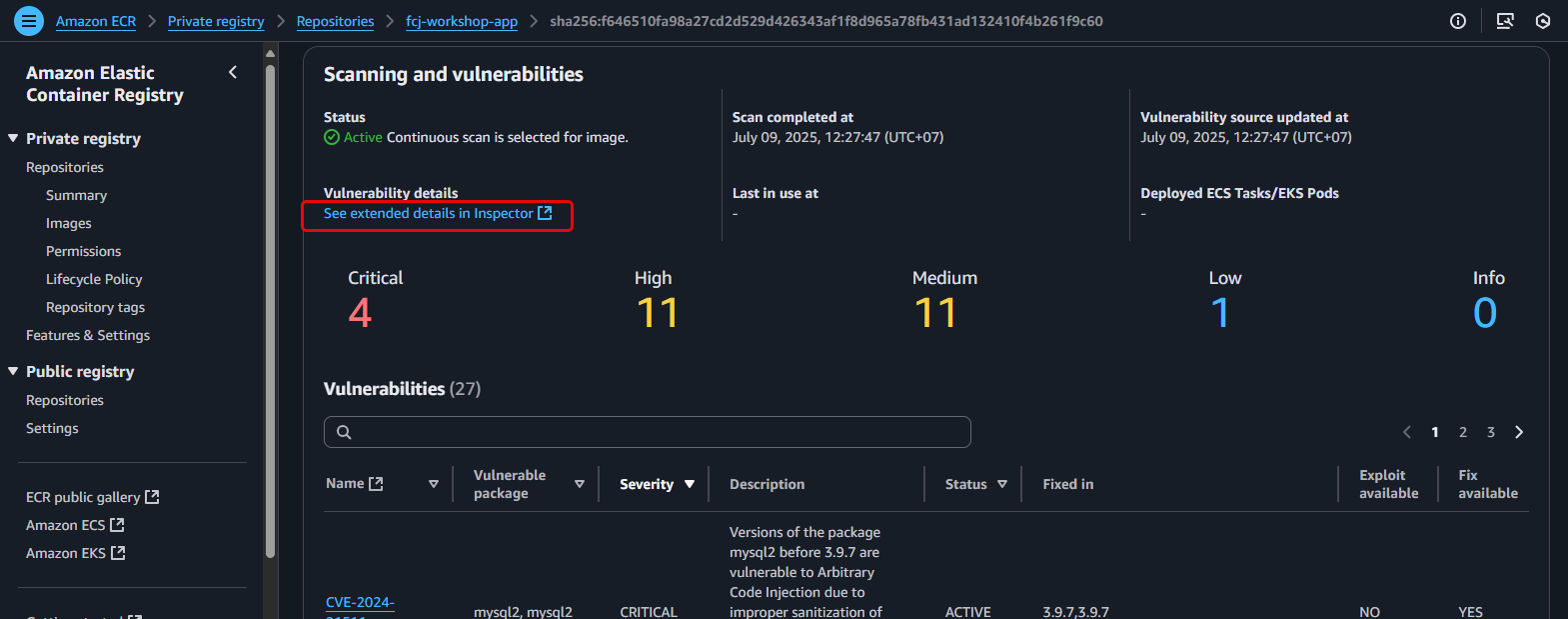
- You will see a full list of detected vulnerabilities, categorized by severity. Each vulnerability will display information such as:
- Severity: Critical, High, Medium, Low, Informational.
- CVE ID: The vulnerability identifier (e.g.,
CVE-2023-XXXX). - Package: The affected software package.
- Fixed in version: The version in which the vulnerability has been fixed (if applicable).
- Description: A brief description of the vulnerability.
- Click on each CVE ID to view more detailed information, including a full description, CVSS score, and links to external resources for a deeper understanding of the impact and remediation.
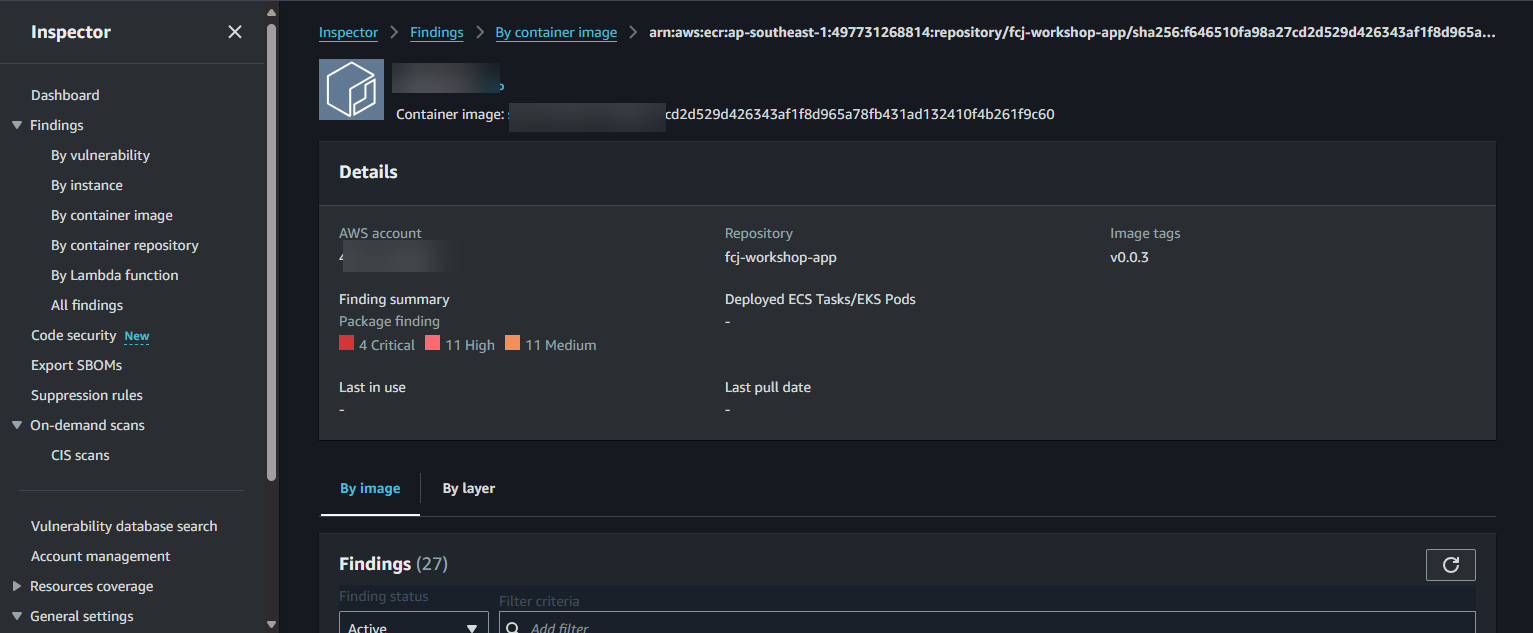
Vulnerability findings for ECR images are also aggregated and displayed in the Amazon Inspector dashboard. You can access the Inspector service and navigate to the “Findings” section to get an overview of all vulnerabilities detected across your various resources (including ECR images).
Vulnerability scanning helps you identify security risks in your images. While not all “Informational” or “Low” vulnerabilities require immediate prioritization,
CriticalandHighvulnerabilities demand immediate attention. You should update affected software packages to fixed versions to mitigate risks.- You will see a full list of detected vulnerabilities, categorized by severity. Each vulnerability will display information such as:
Enabling and monitoring vulnerability scanning is a crucial step in maintaining a secure software supply chain for your containerized applications.