CloudTrail and CloudWatch
For a comprehensive overview of activities within Amazon ECR and to ensure adherence to security policies, leveraging AWS CloudTrail and Amazon CloudWatch is essential. These two services work together to provide robust monitoring capabilities, helping you track who did what, when, and where within your registry environment.
In this section, you’ll learn how to:
- Ensure CloudTrail records ECR activity and sends logs to CloudWatch Logs.
- Monitor ECR-related API calls.
- Analyze logs and monitor ECR performance metrics.
Setting up CloudTrail to monitor ECR
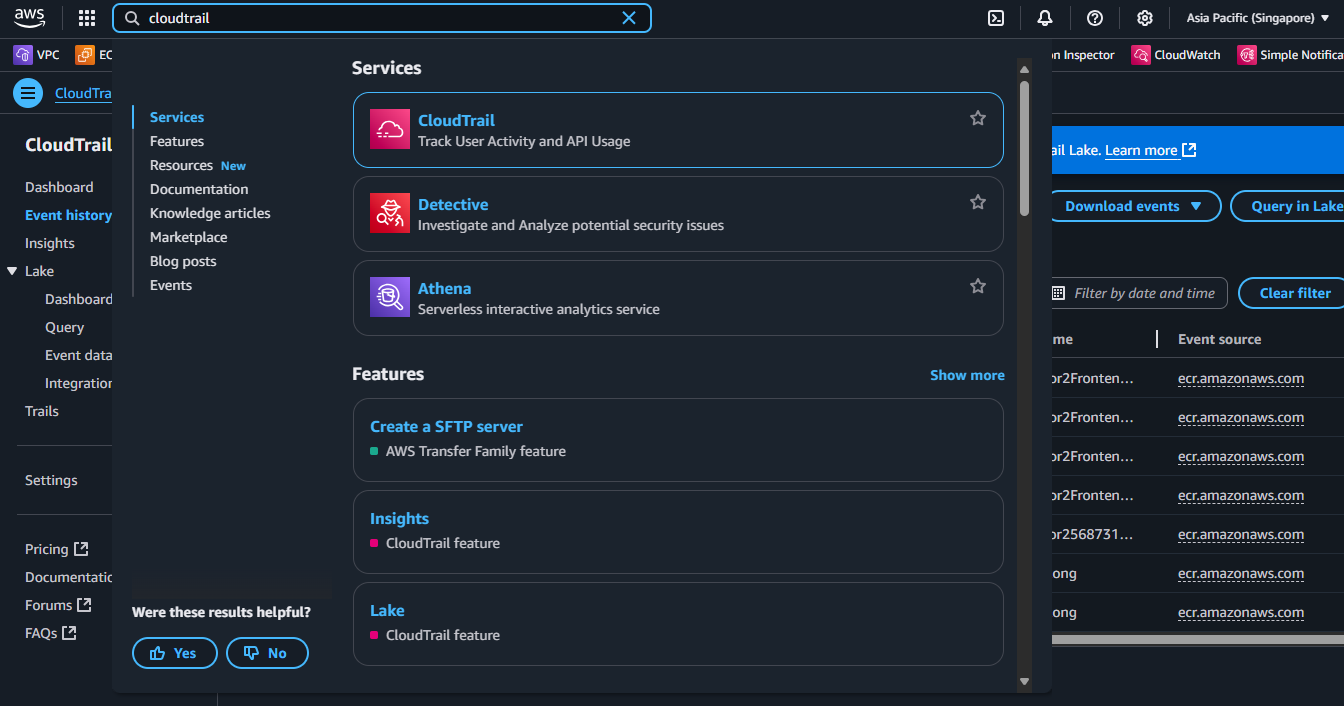
Log in and access CloudTrail:
- Log in to the AWS Management Console.
- In the search bar, type
CloudTrailand select the CloudTrail service from the results.
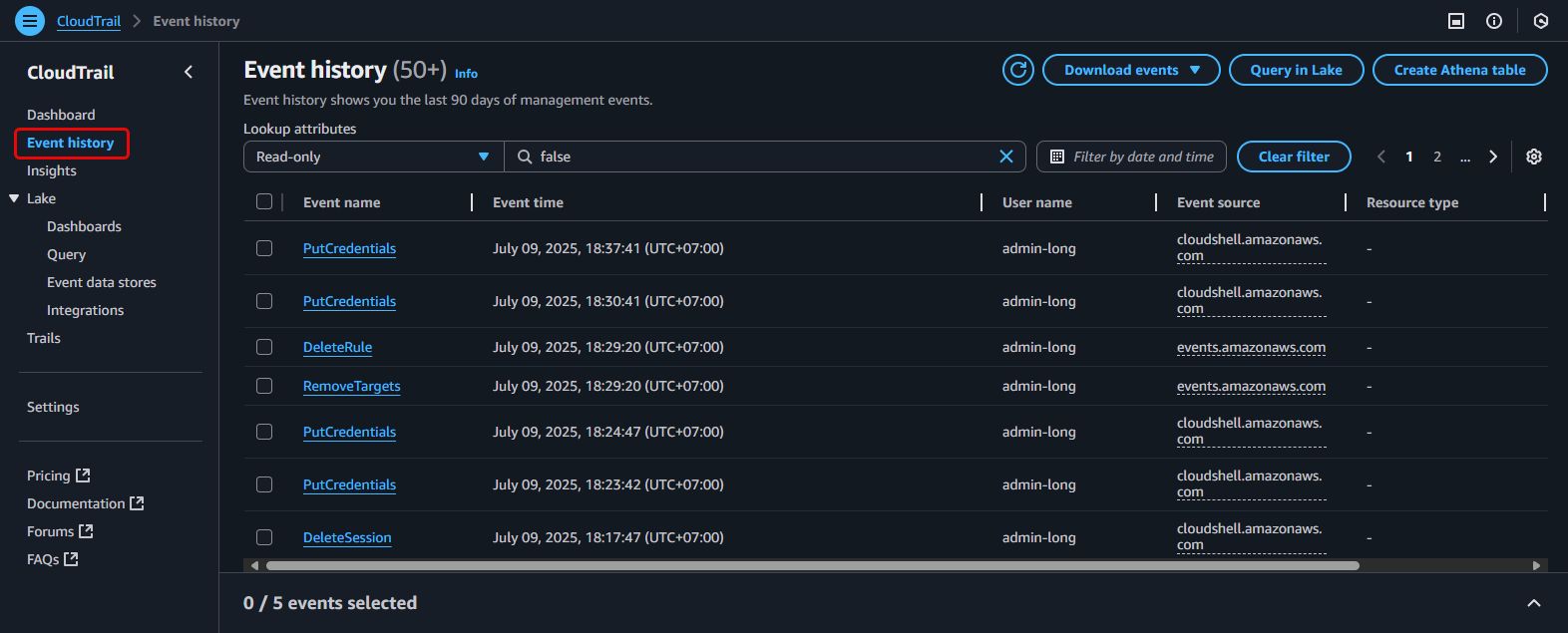
Check Trail status and decide action:
- In the CloudTrail dashboard, select “Trails” from the left menu.
- Check if you already have an active Trail that is sending logs to CloudWatch Logs.
- If you need to create a new Trail or configure an existing one: Proceed to Step 3.
- If the Trail is already correctly configured: You can skip the Trail configuration steps and go directly to Step 9.
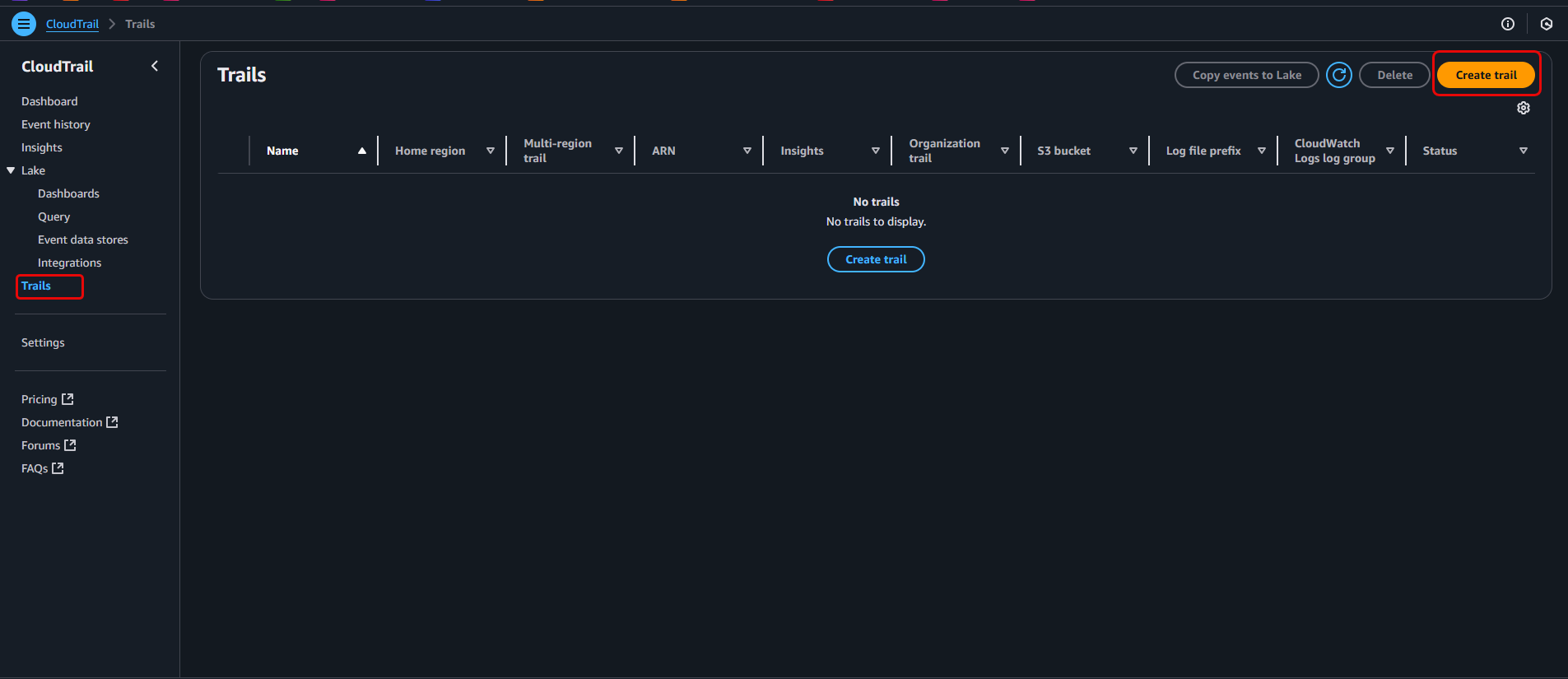
Create or edit a Trail to send logs to CloudWatch Logs:
- If creating a new Trail: Click on “Create trail”.
- If editing an existing Trail: Click on the Trail’s name, then find the “CloudWatch Logs” section and click “Edit”.
Configure Trail details (if creating new):
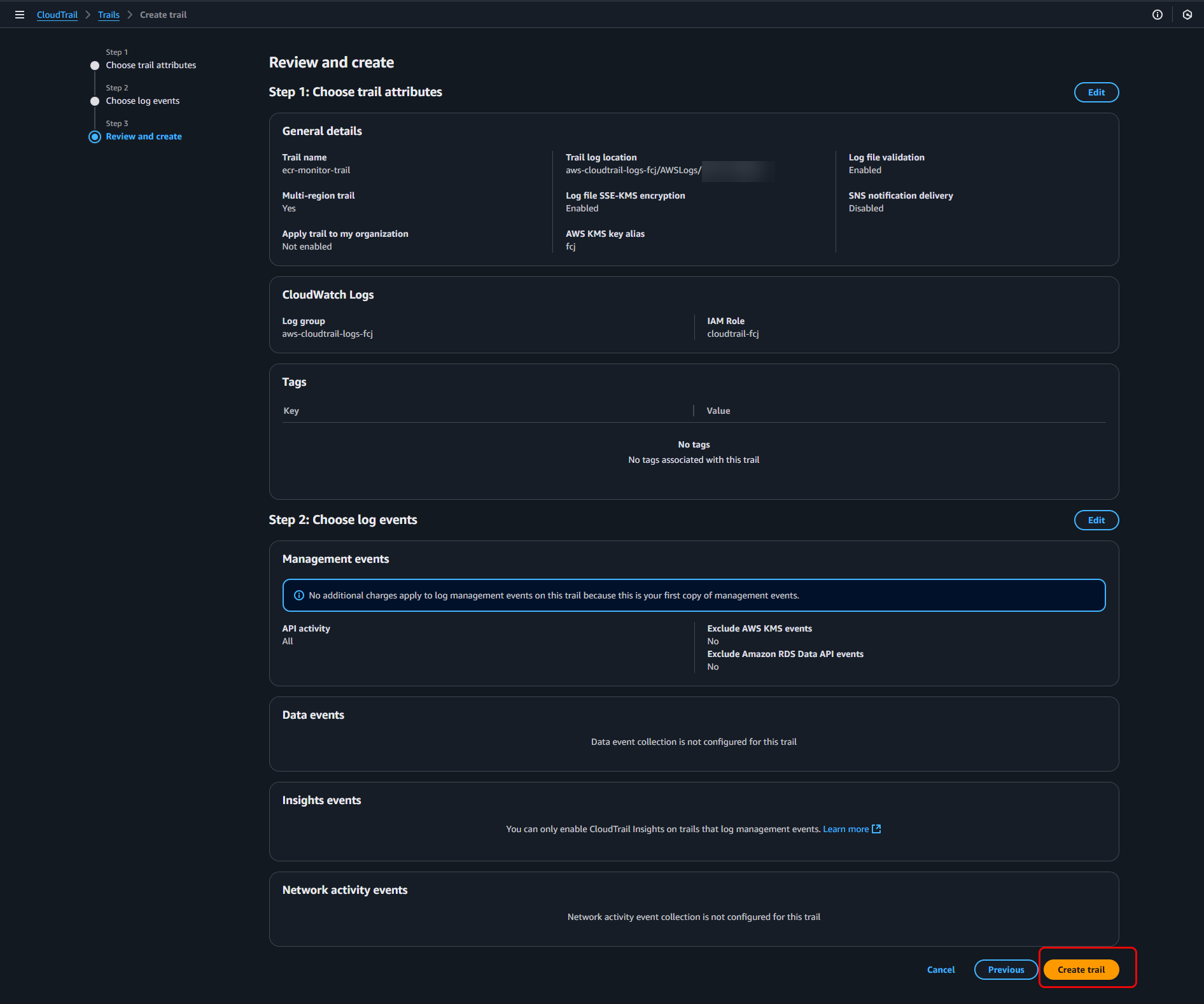
- Trail name: Give your Trail a name (e.g.,
ecr-monitor-trail). - Storage location: Choose “Create new S3 bucket” and give it a name (or use an existing bucket).
- CloudWatch Logs: Select “Enabled”. Choose “New” to create a new Log group (e.g.,
/aws/cloudtrail/ecr-logs) or select an existing Log group. - (Keep other options as default or skip them).
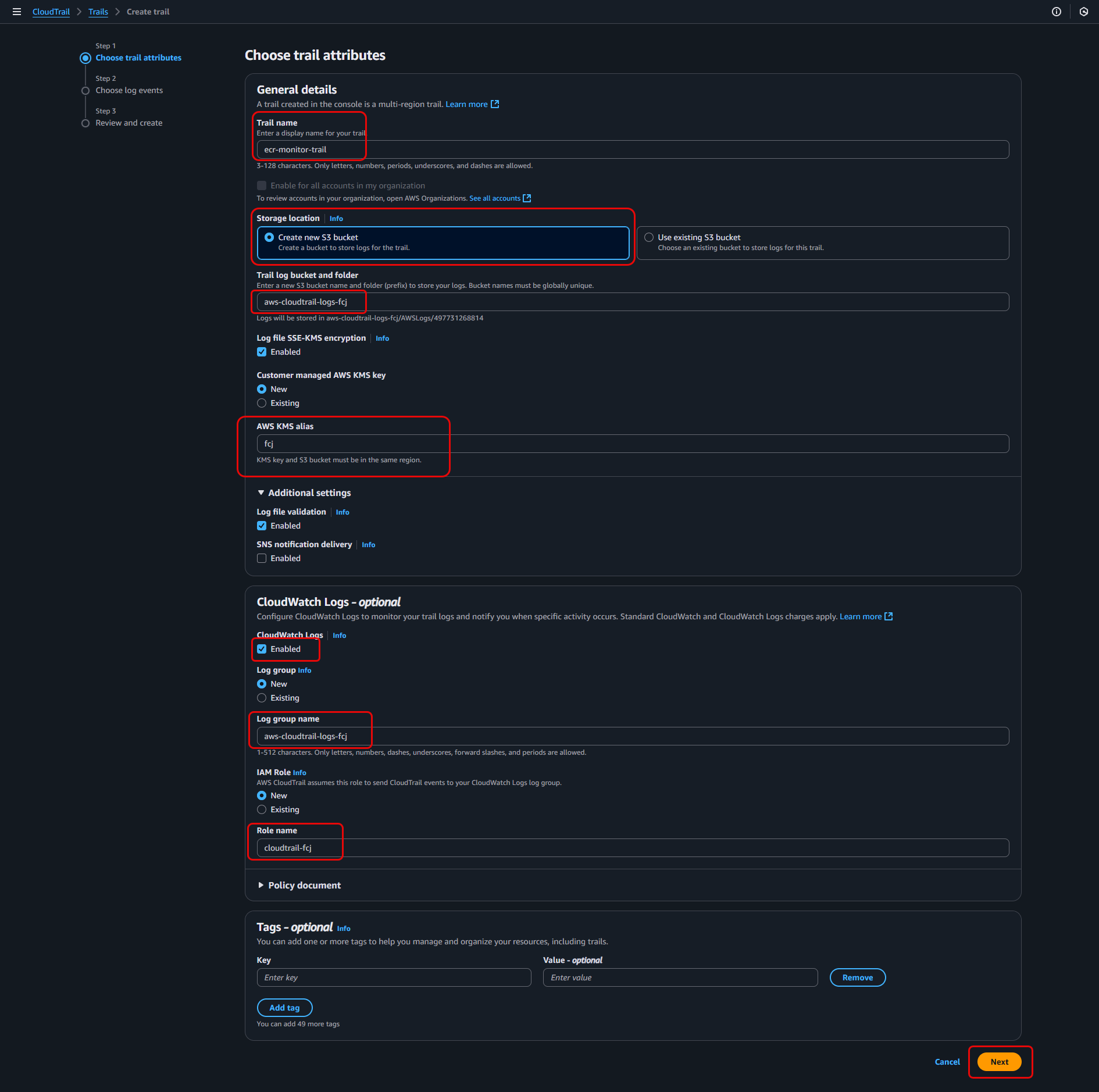
- Trail name: Give your Trail a name (e.g.,
Configure Trail details (continued):
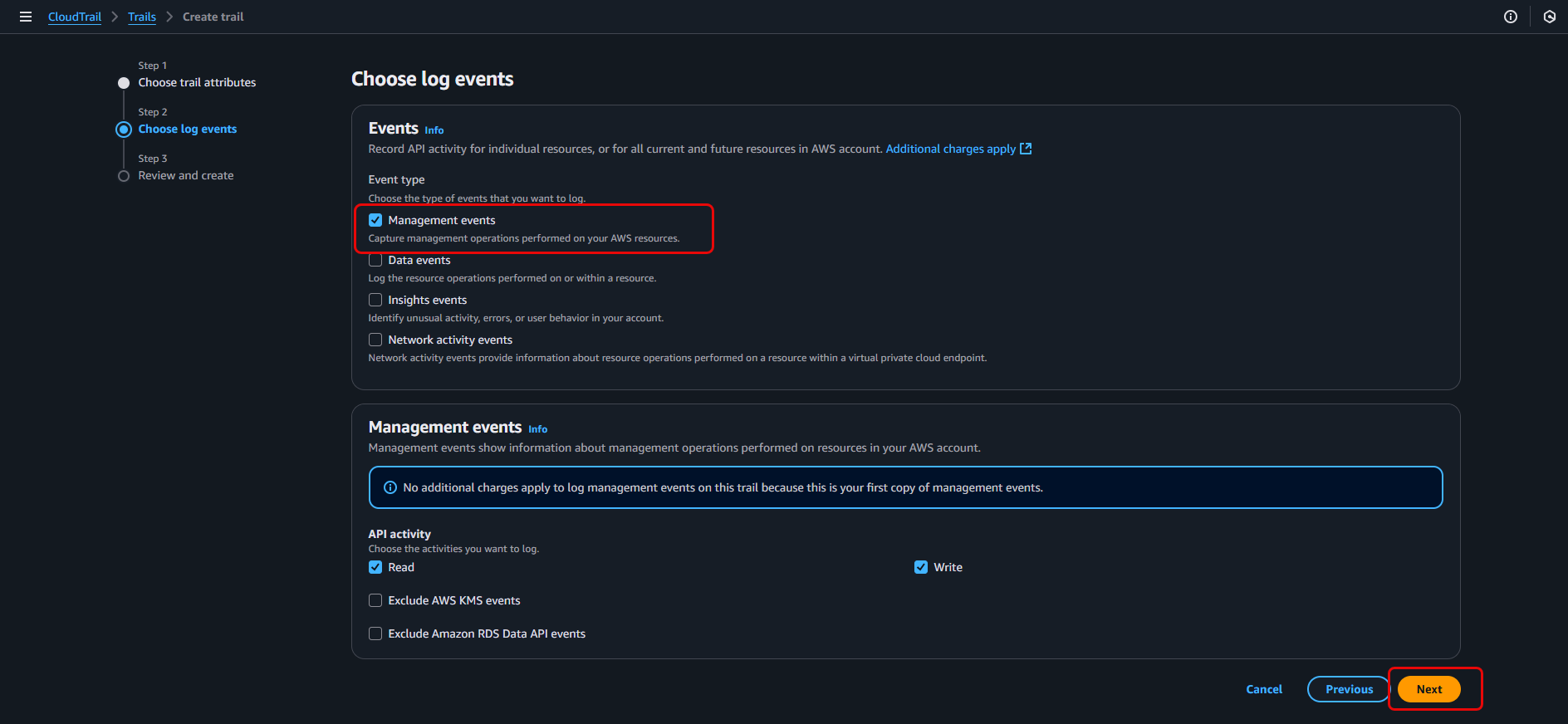
- Click “Next”.
- In the “Choose log events” section, ensure “Management events” is selected.
Complete Trail creation:
- Click “Next”.
- Click “Create trail” (if creating new) or “Save changes” (if editing).
Viewing and analyzing ECR logs
Access CloudTrail Event History:
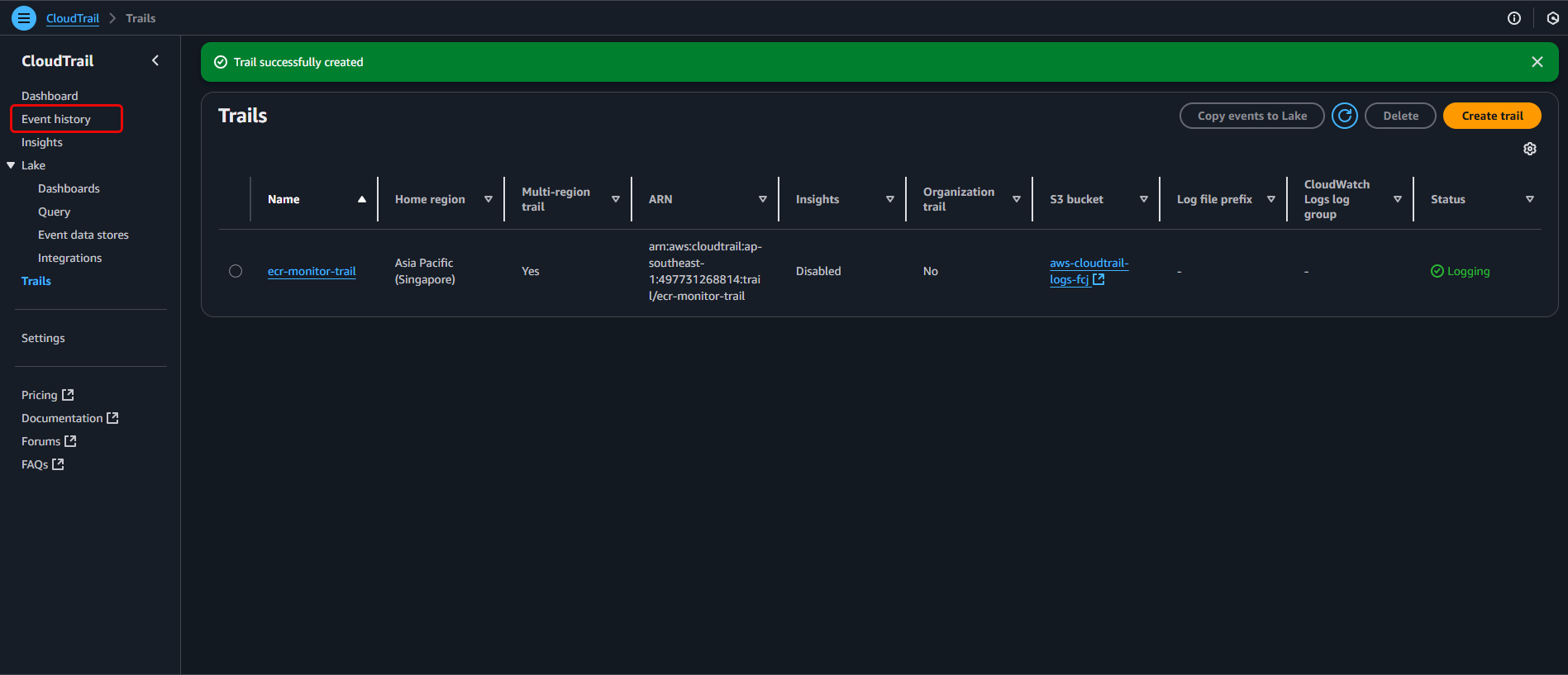
- In the CloudTrail dashboard, select “Event history” from the left menu.
Filter events by ECR:
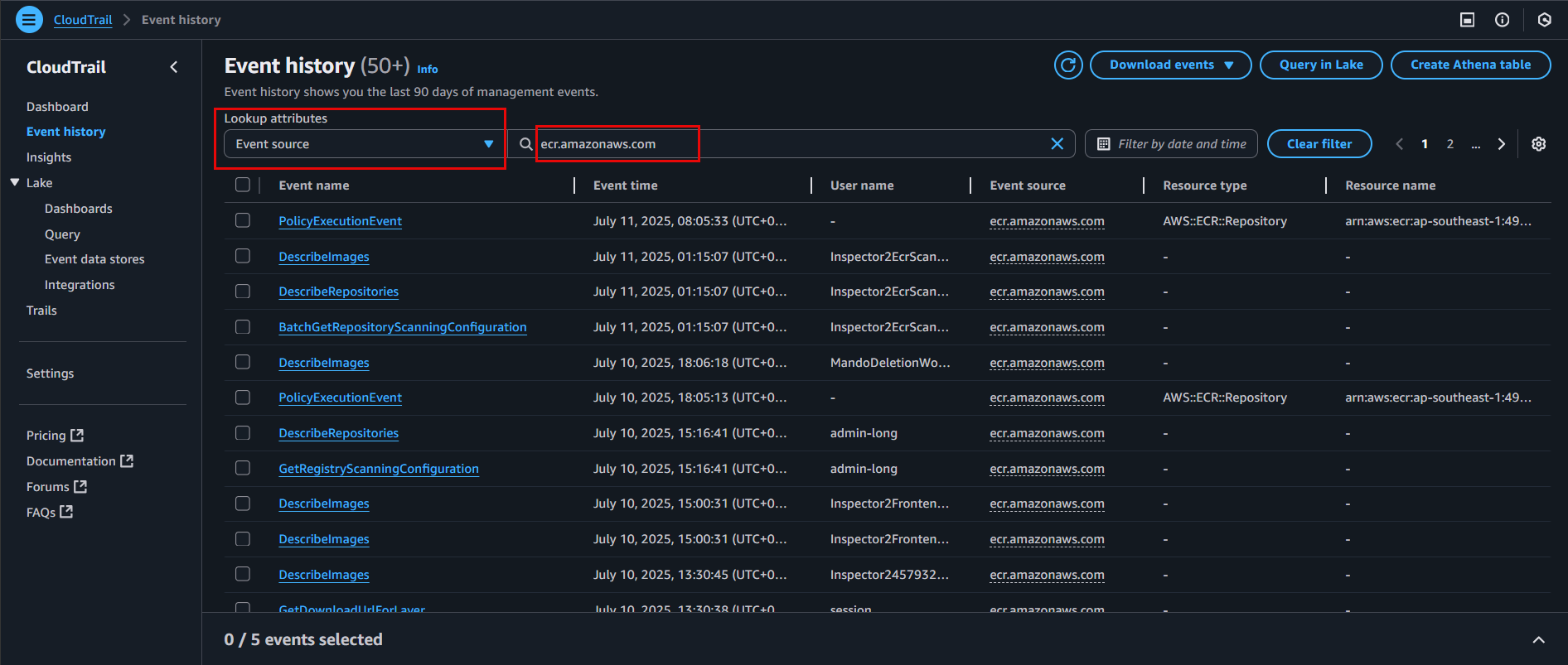
- Click on the filter “Attribute”, select “Event source”.
- In the field next to it, type
ecr.amazonaws.comand pressEnter.
Access Log groups in CloudWatch:
- In the AWS Console search bar, type
CloudWatchand select the CloudWatch service. - In the CloudWatch dashboard, select “Log groups” under “Logs”.
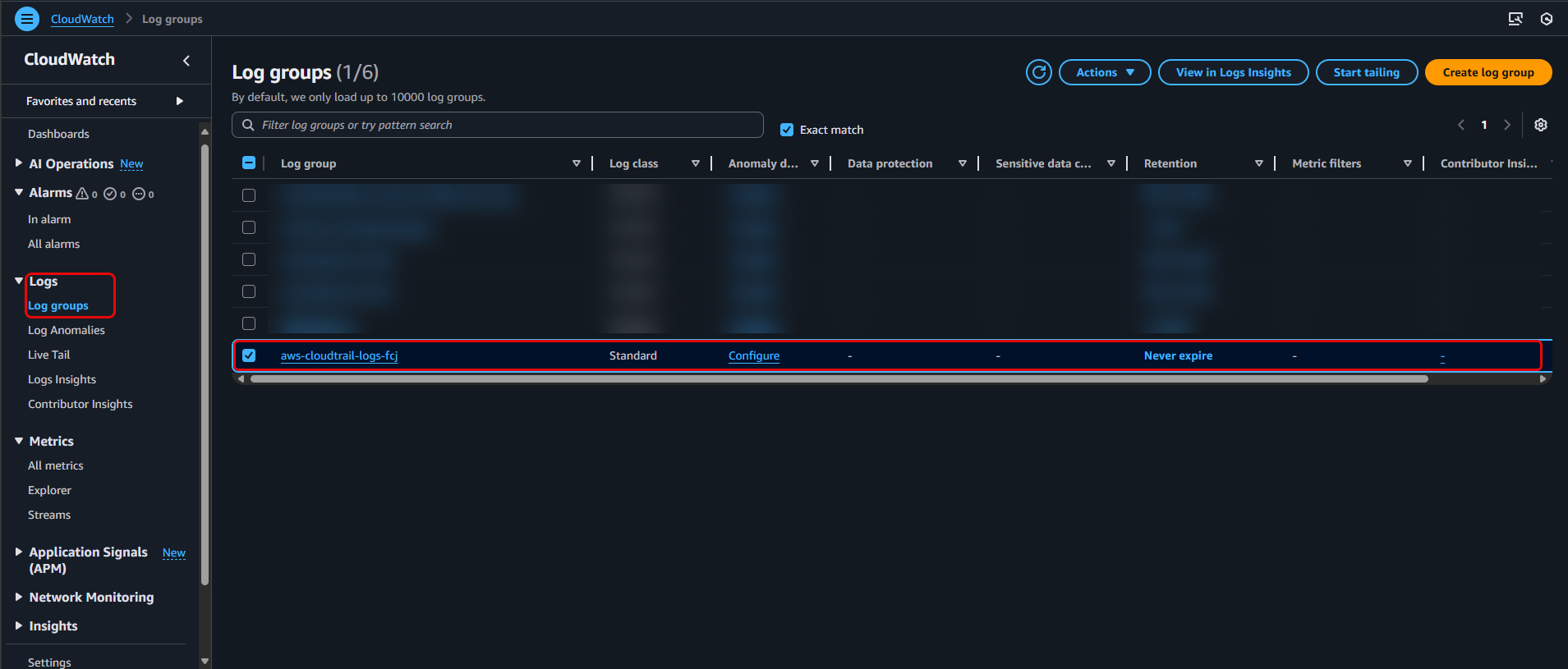
- In the AWS Console search bar, type
Find the CloudTrail Log group:
- In the Log group list, find the Log group that CloudTrail is sending logs to (configured in Step 4).
- Click on the name of that Log group to view the log streams.
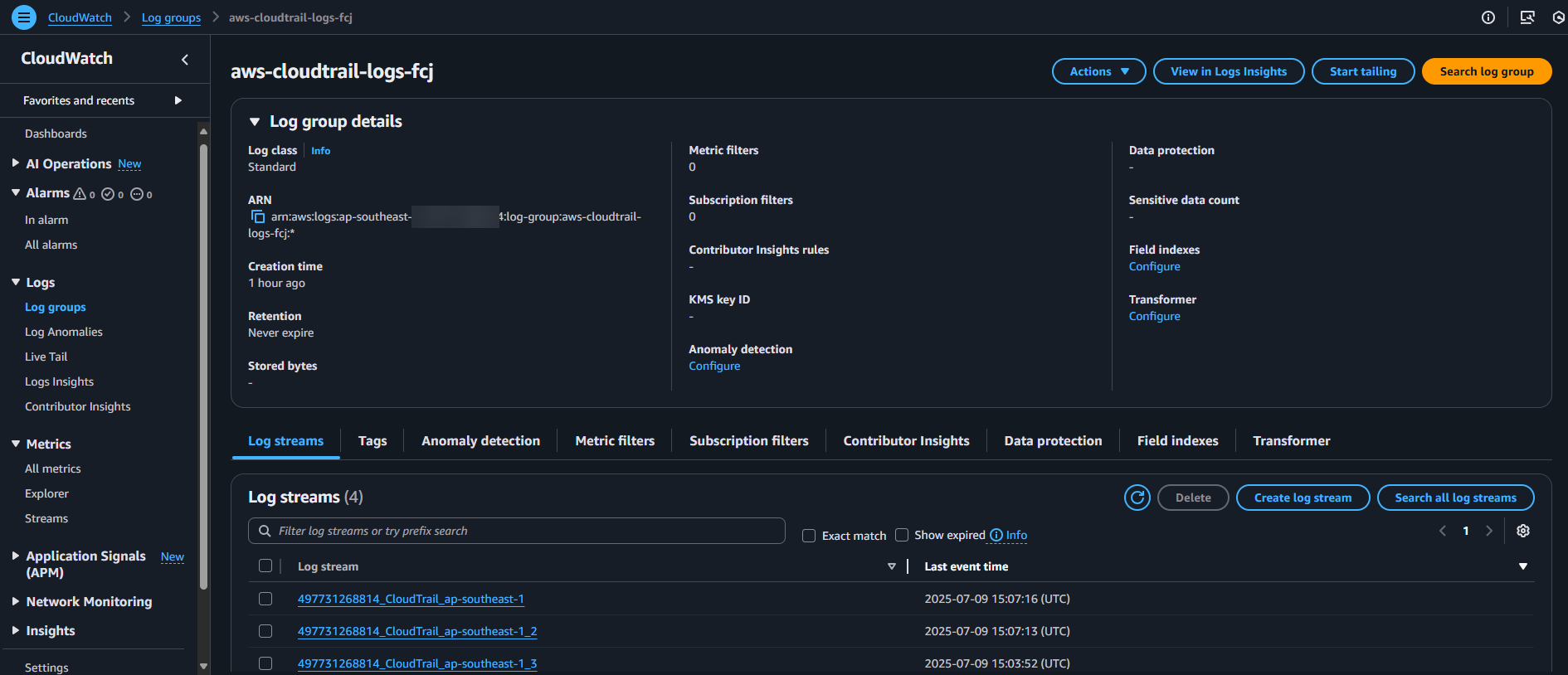
Monitoring metrics and creating Dashboards
Monitor ECR metrics in CloudWatch Metrics:
- In the CloudWatch dashboard, select “Metrics” from the left menu.
- In the “All metrics” section, select the namespace “ECR” or “AWS/ECR”.
- Choose the ECR metrics you want to view (e.g.,
RepositorySize,ImageCount).
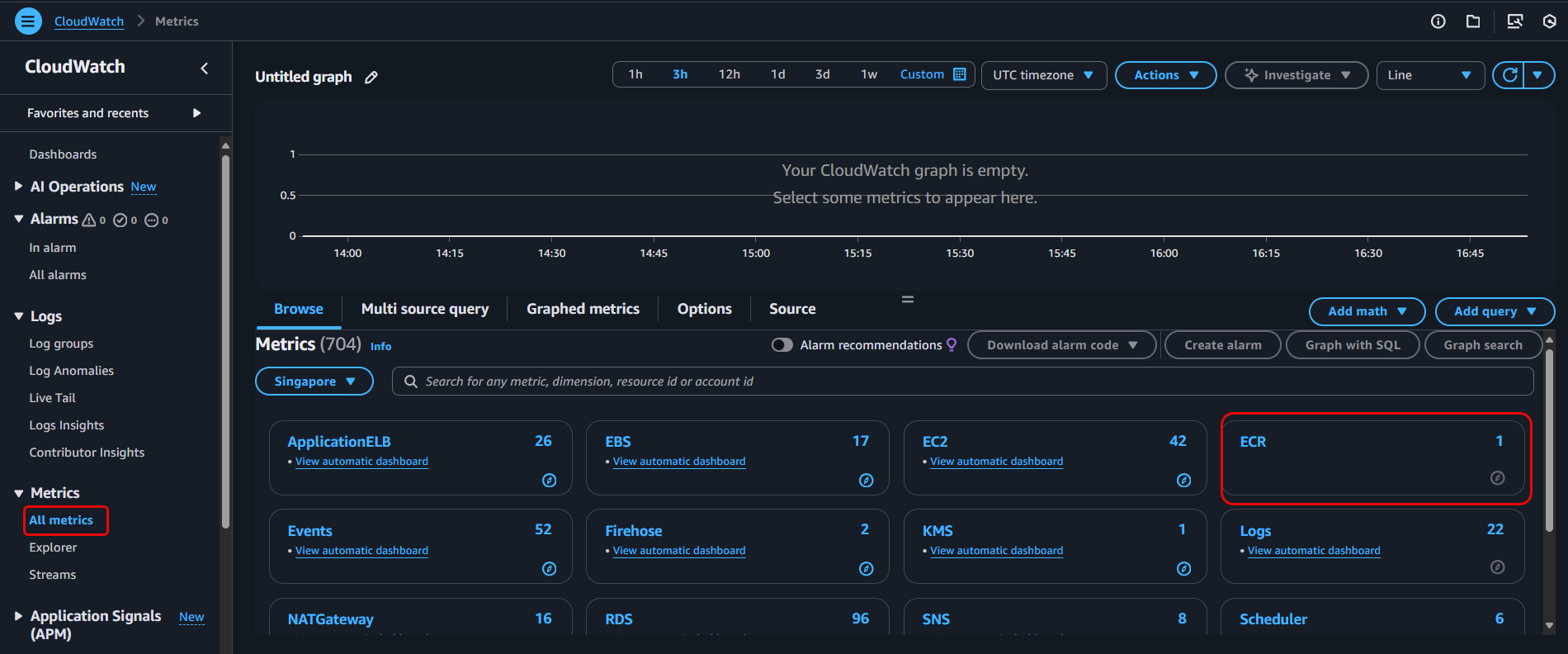
Create a custom Dashboard for ECR (Optional):
- In the CloudWatch dashboard, select “Dashboards”.
- Click “Create dashboard”, name it (ex:
ECR-Operations-Dashboard), and click “Create dashboard”.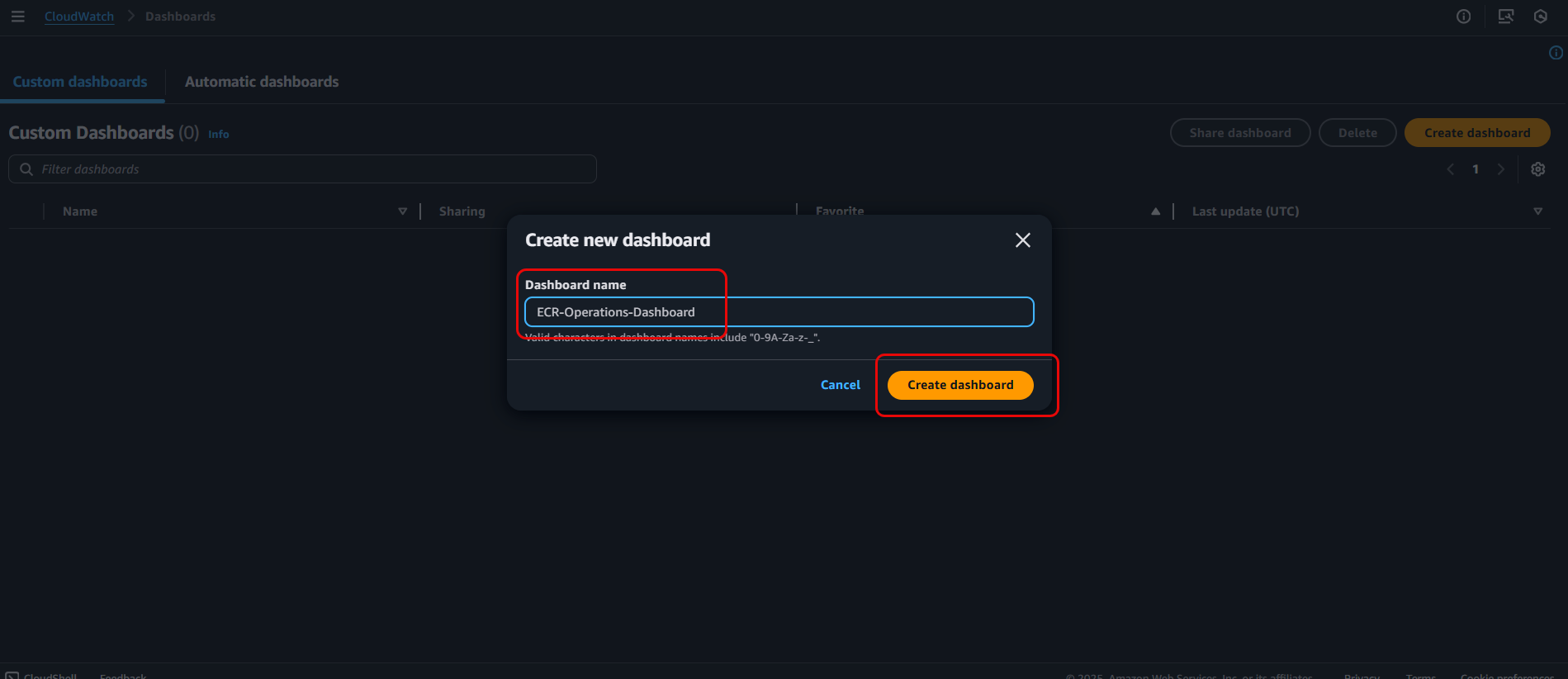
Add widgets.
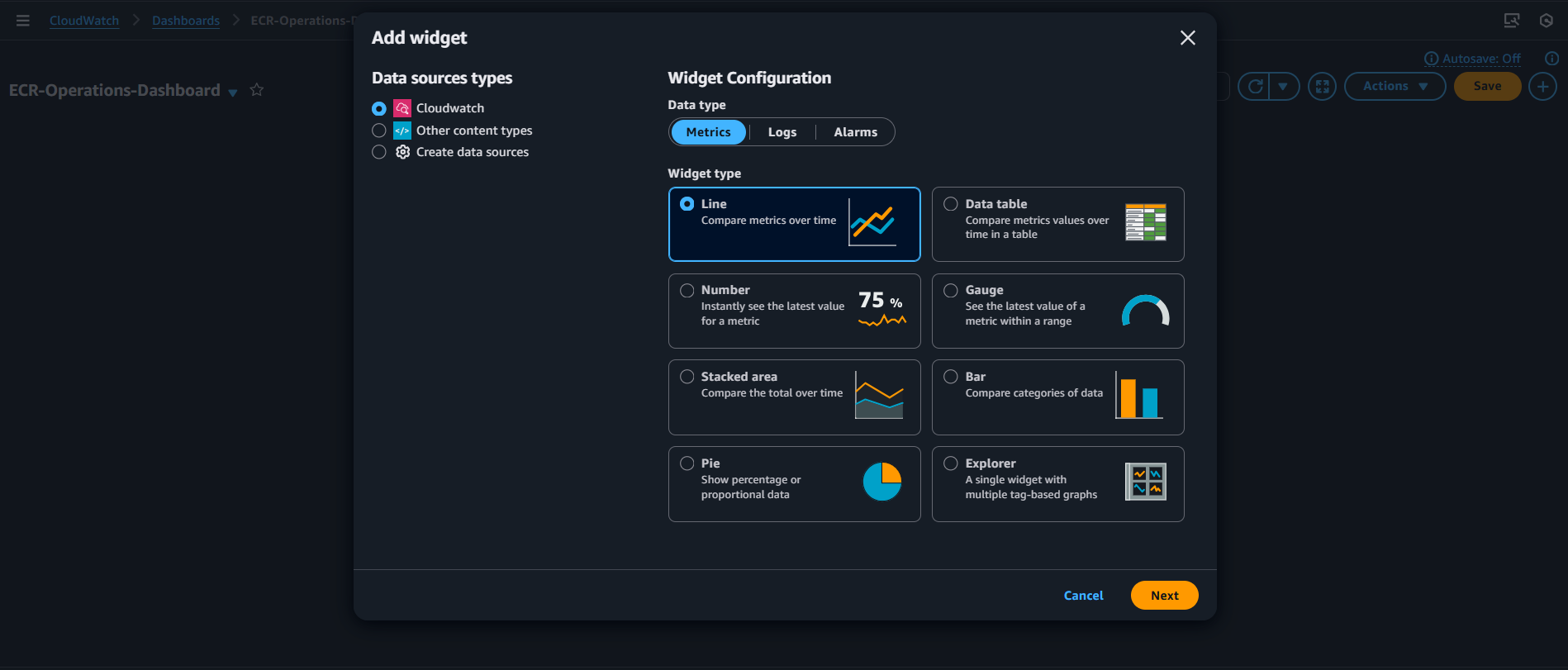
Select the metric to add.
Select ECR.
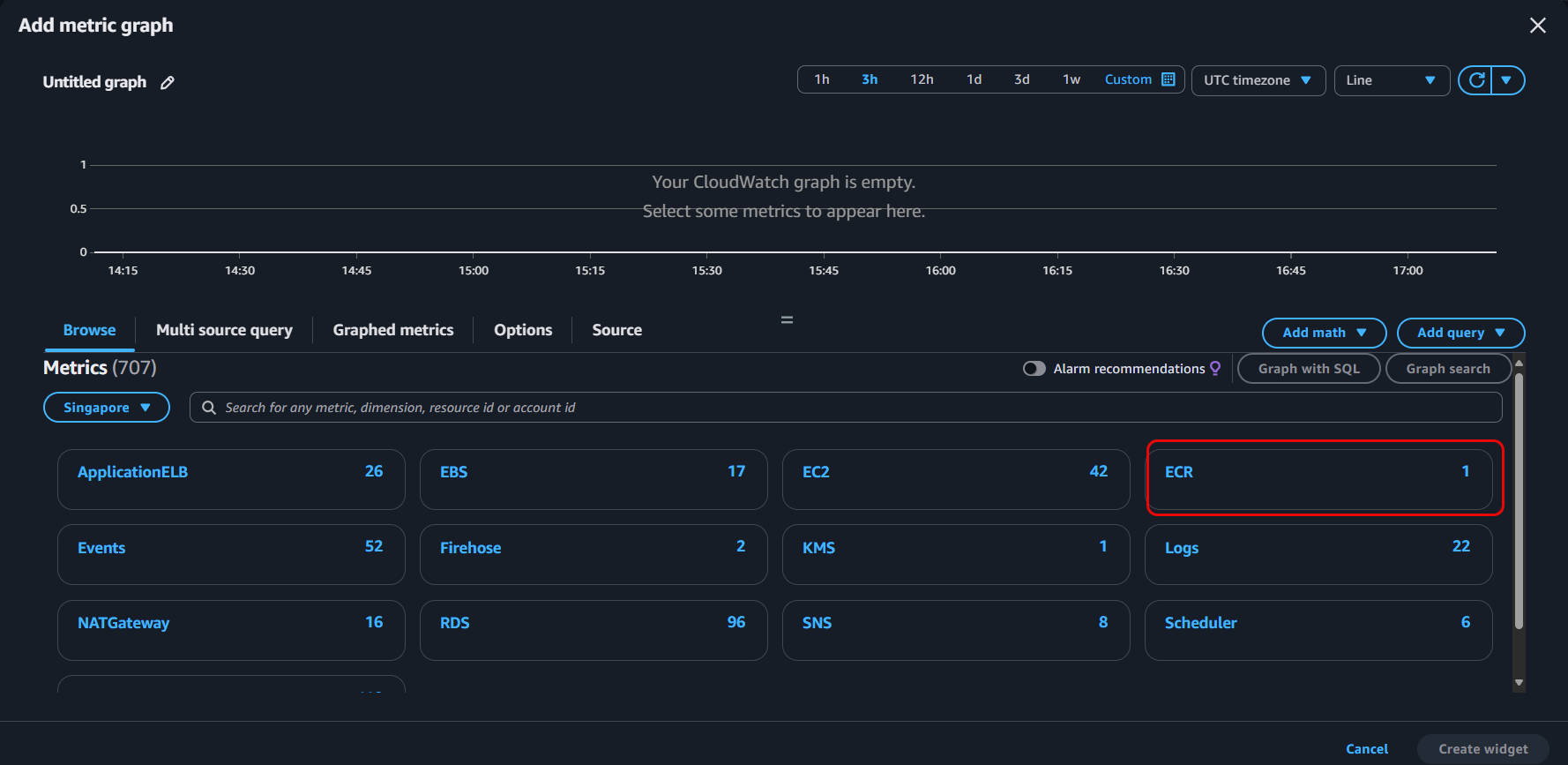
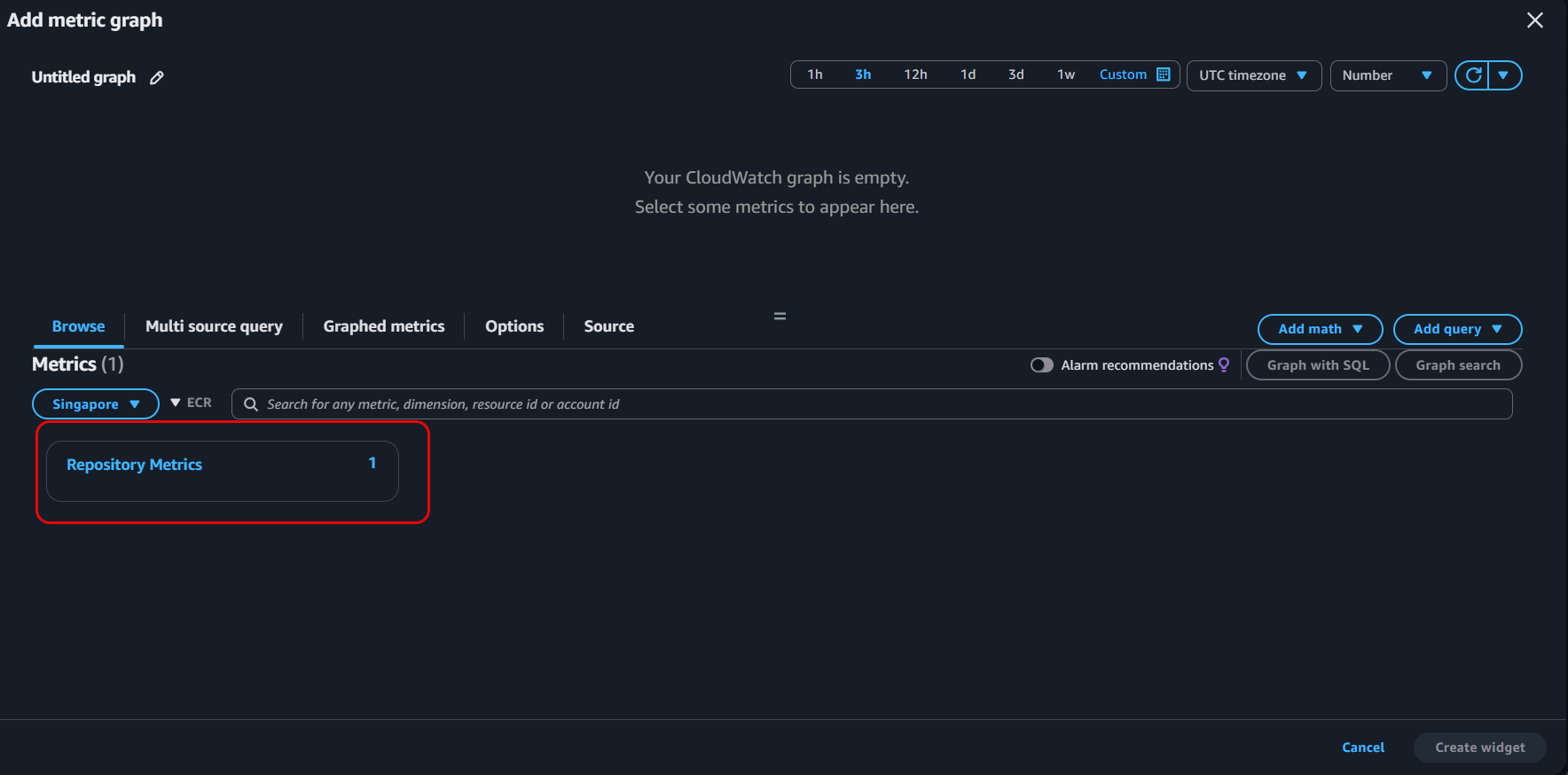
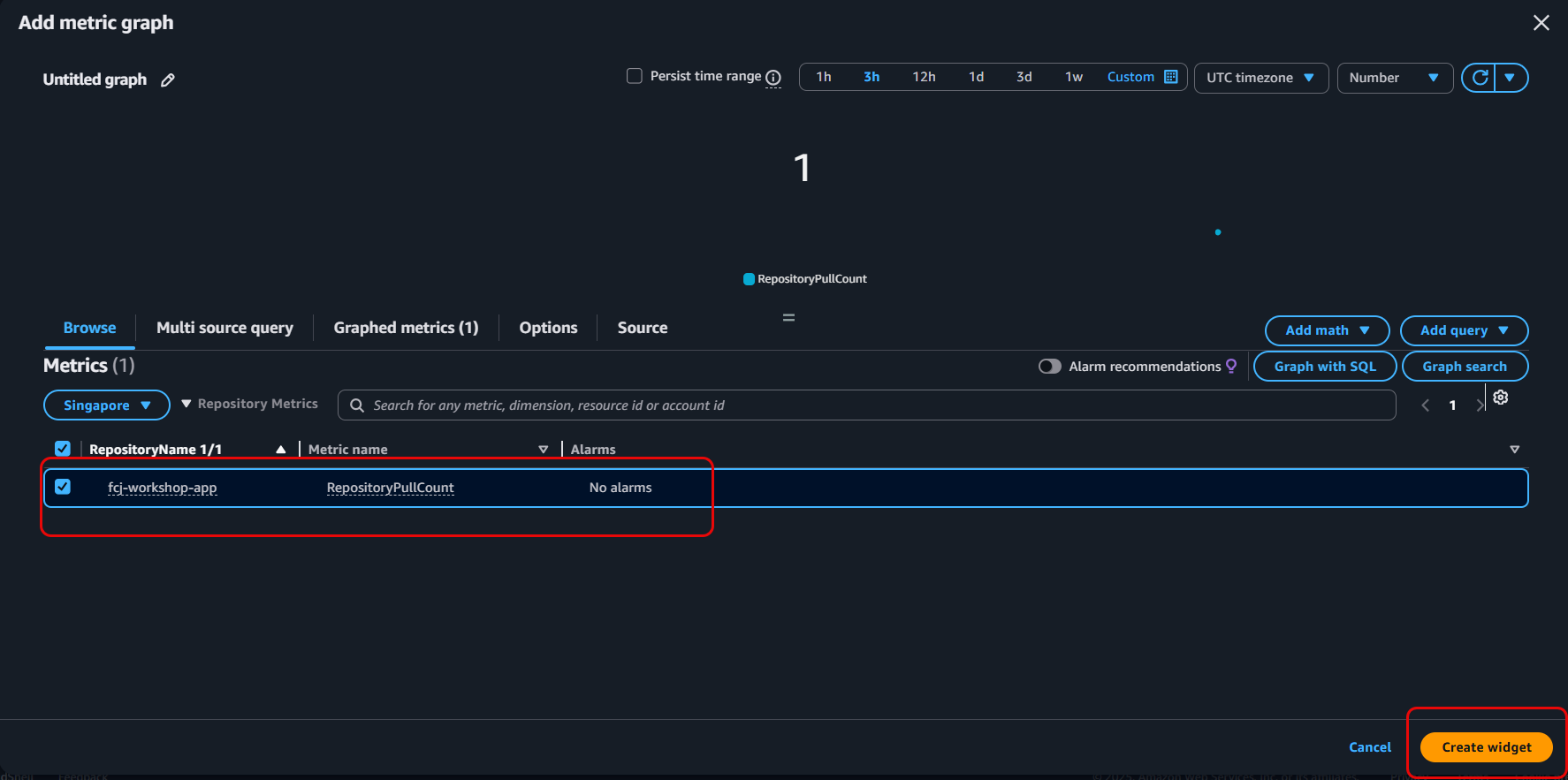
Choose your ECR repository.
Select create widget.
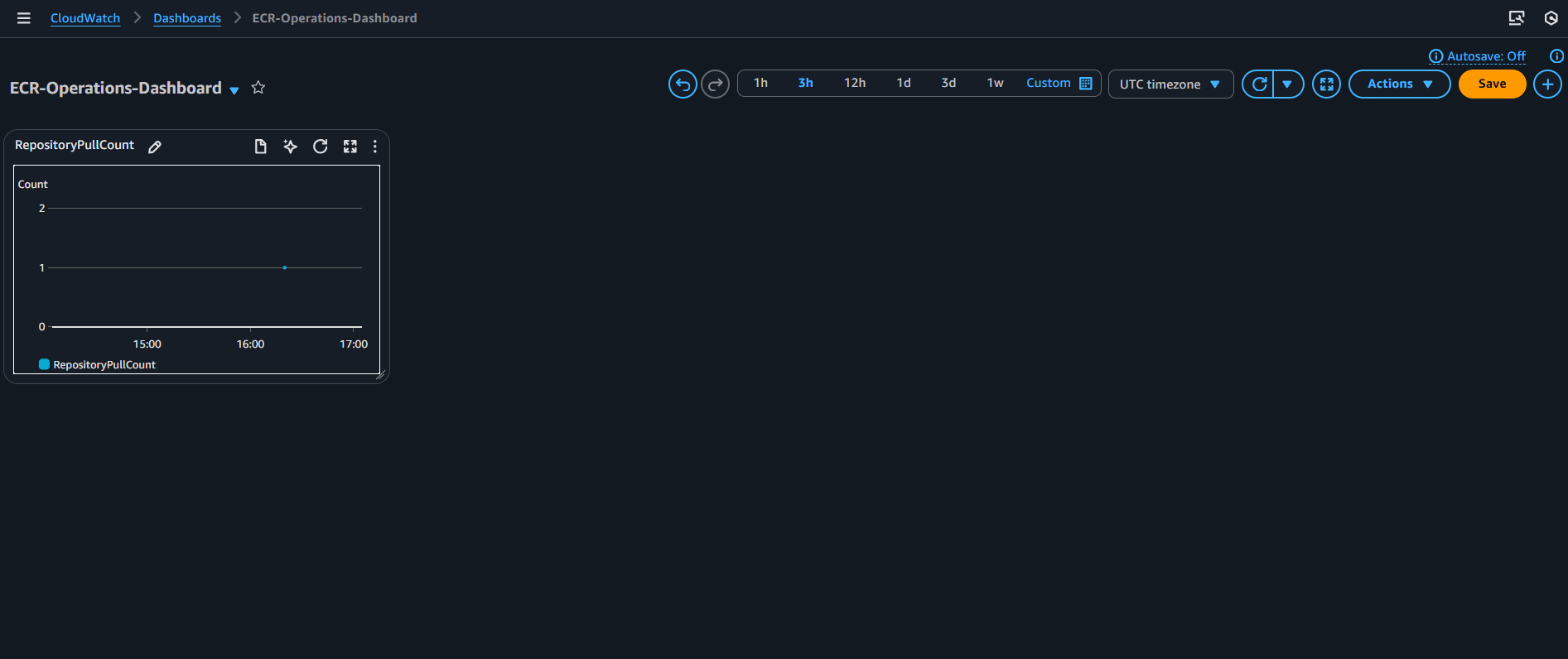
By setting up AWS CloudTrail to record ECR events and send them to Amazon CloudWatch Logs, you’ve created a robust monitoring system. Now, you can easily track API activities in ECR, analyze detailed logs using CloudWatch Logs Insights, and visualize key ECR performance metrics through custom CloudWatch Dashboards. This allows you to not only understand who did what and when in your image repositories, but also proactively monitor ECR’s status and performance, thereby enhancing both security and operational efficiency.